
Client Portal Support
If you have a question about the Client Portal you’re in the right place!
We’ve put together a series of tutorial videos to guide you in your experience. There are also a number of FAQs for your reference.
Please note, IAF regularly makes updates and improvements to our Client Portal, you may notice a few small differences between the tutorial videos and the portal as a result.
FAQ
Tutorial Videos
How to: Sign Up & Register an Organization
How to: Apply to a Program
How to: Apply to a Program using a Mobile Device
Note: The IAF Client Portal operates best on a laptop or desktop computer however, a mobile device can be used as an alternative. This tutorial was filmed using an iPhone on Safari browser, but other mobile devices and tablets will have similar functionality.
How to: Add EFT Information
How to: Reporting
How to: Funding Acknowledgement
Check for Completeness
This feature allows you to identify and correct any missing information ahead of time. By flagging incomplete sections of the application early, you can ensure your application is fully prepared once submissions open, saving time and reducing stress. Note – this does not check for eligibility. It just checks that all the required boxes are complete.
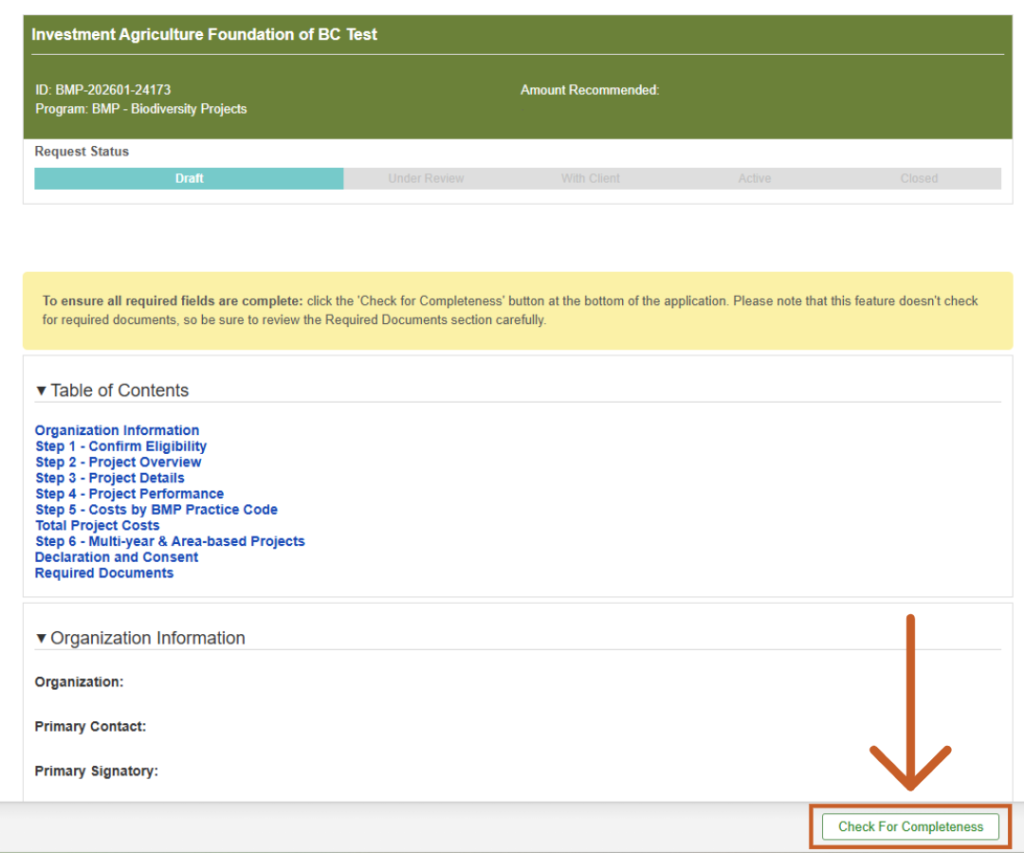
How to Check your Application
- Locate the “Check for Completeness” button. At the bottom right corner of your application, you’ll find a button labeled “Check for Completeness.”
- If you’re actively filling out the application, you will first need to click “Save & Close.”
- After saving, the “Check for Completeness” button will appear.
- After clicking “Check from Completeness,” the IAF Client Portal will automically scan your application for missing information.
- If any information is missing, a red message will apear at the top of the application clearly outlining what needs attention.
- Simply edit your application to add the missing details. Remember to hit “Save” or “Save & Close” to ensure your edits are saved on the application!
You can run the “Check for Completeness” feature as many times as needed to ensure your application is ready for submission.