Enhanced Replant Program Project Resource Hub
You’ve been approved for ERP Funding. Now what?
Congratulations on your successful application, and welcome to the Enhanced Replant Program Project Resource Hub.
Implement your project like a pro, with our guides, templates and more!
Here, you will find a step-by-step outline of your responsibilities as a Funding Recipient and all of the information needed to successfully manage your funded project. If you still have questions after reviewing the content of this resource, please don’t hesitate to contact the IAF Team.
Project Changes
If you are not able to complete your project according to the approved application, please inform the IAF Team as soon as possible using the IAF Client Portal.
Request a project change prior to those activities taking place. If you do not reach out to IAF to confirm the changes are eligible, we are unable to guarantee payment.
Reporting
The Enhanced Replant Program is funded through the Ministry of Agriculture and Food. As the administrator, IAF collects reports from applicants at the completion of their project to ensure reimbursement is accurate to actual costs, and that spending of public funds is aligned with the program’s goals, set out the funder.
Successful applicants of ERP must complete approved activities, submit a project report, and successfully complete an on-site field inspection (if selected) prior to receiving payment.
For projects that take place over 12 months or more, a progress report may be required to your project is still on track.
Project report(s) must be completed and submitted to IAF, via the IAF Client Portal, with receipts and invoices (as applicable), to be considered for payment. It is important that the final report is submitted on time and with all required information.
When your report(s) is ready, you will receive an email to your inbox with directions. Emails are sent from do-not-reply.grants@fluxx.io, please save this as a contact in your email.
For a reminder of eligible activities and expenditures under the Enhanced Replant Program, please visit the program webpage or view the Program Guide in the Resources below.
To complete or review a report, click the Report card on the left side of the IAF Client Portal and navigate to the relevant project or report.
Watch the video to learn the reporting basics.
Completing a Report
Just like your application, you will need to click the edit button in the top right corner to enter edit mode. At any point you can click the Save and Close button and come back to your report at a later date if needed, or if your report is complete, you can then click the Submit button.
All empty fields in the report must be completed. While it may feel like IAF already has some of this information, we’re looking to see if anything has changed between your proposed project and the project completed.
The below will cover the specific sections of the report, and how to complete them.
- Project Contact Information
- Funding Details & Project Activities
- Project Report
- Financial Report
- Attestation
- Document Upload
- Project Story
This information is taken from your profile. No action is needed, unless the information requires updating.
If an update is required, please contact info@iafbc.ca to start the update.
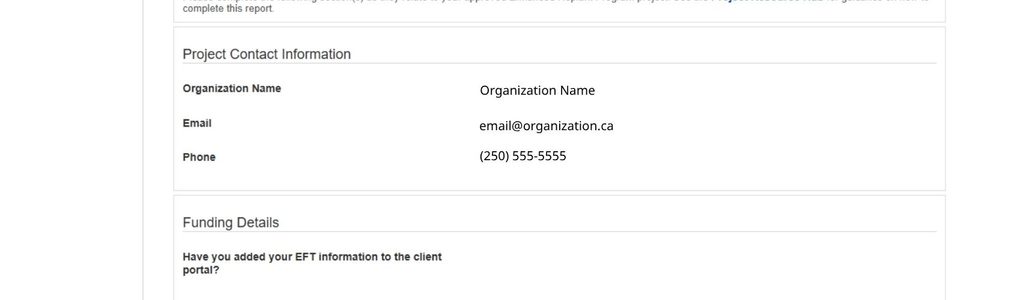
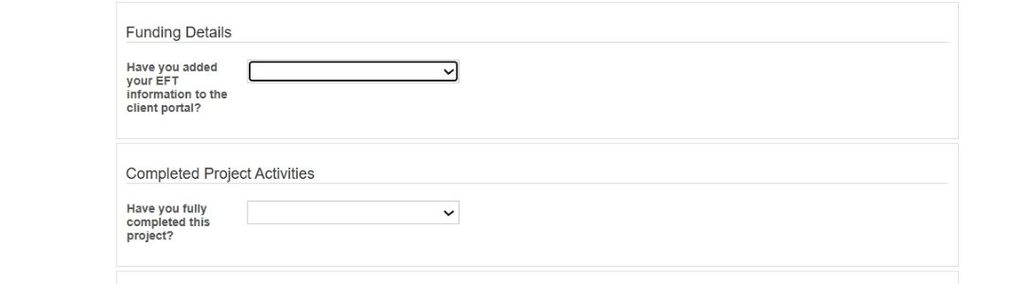
Funding Details
The question in this section is asking if you have added your information to the Client Portal. If you have not, please ensure you do so promptly, so payment is not delayed.
For information about how to add your banking information see below.
Completed Project Activities
If you completed all the approved activities select yes. If you completed some, but not all; select no.
Reminder: Changes to your project need to be communicated to IAF prior to those activities taking place. If you do not reach out to IAF to confirm the changes are eligible we are unable to guarantee payment.
Some fields in this section are from your project, such as the Project Start and End Dates. These fields cannot be edited.
Planting Location
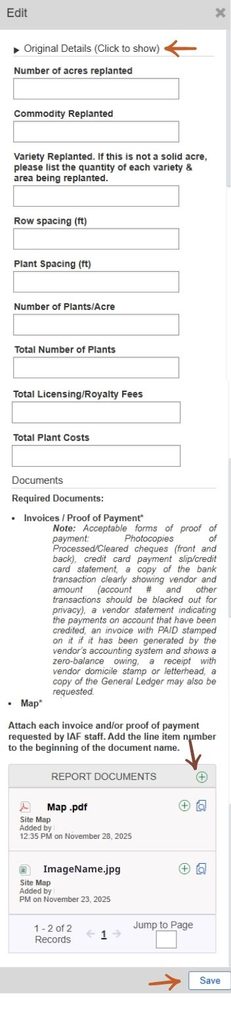
To complete the Planting Location section, you will need to click the Edit button to the right-hand side for each location approved in your project.
Like the application process, this will create a pop-out box (shown here) with additional fields that need to be completed.
To view the planting location information you provided at the time of application click the heading: Original Details (Click to show). Clicking on the heading again will hide the information.
The empty fields in this pop-out need to be completed to reflect the project as it was completed. We understand there may be some variance between the proposed application and the actual result in the fields for the project, so we do not always expect to see the same information in the original and reporting stages.
For each planting location you are required to provide documentation showing the related invoices and Proof of Payment.
Complete this step for each planting location you were approved for.
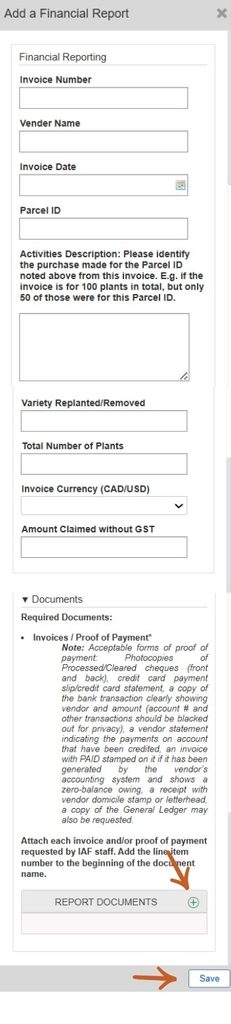
This section summarizes the information provided in the planting location and any expenses you’ve uploaded for reimbursement.
Depending on which stream of ERP you are participating in, you may be asked to add additional expenses to your report (as shown in image). Click the green plus to add an expense.
You may also upload an invoice summary.
The amount approved is the maximum amount that can be reimbursed for your project.
The total actual costs will auto-calculate based on the amounts input for your planting locations > Click SAVE at the bottom of the report to update the calculations.
Once all planting locations and/or invoices are added to the report and you click SAVE to refresh the report, the total reimbursement will be calculated based on the cost share ratio and total actual costs.
Note: All reports are reviewed by IAF staff and expenses are verified. If a reimbursement amount is higher than the approved amount this does not guarantee reimbursement.
An attestation must be provided to submit your report.
By clicking the “I Agree” box and signing your name, you are agreeing to the description in this section.
Please review and ensure that you understand prior to attesting your name.
Note, attestations must be completed by the Key Contact or Signatory for your project as identified in your application.
The document section will note which documents are mandatory to attach, and which are optional. This may be a list with a heading noting “Mandatory attachments” or could be indicated with an asterisk (*).
When a mandatory document is not provided, our team may send the report back to you seeking the document. If not provided, we may be unable to accept your report and reimburse you for your project.
To upload a document to your report, click on the green plus to the right of the Report Attachment heading.
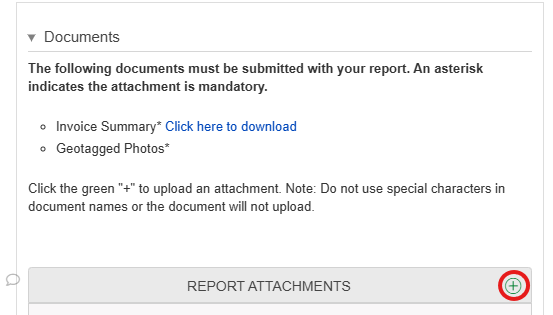
This will create a pop-out on your report, where you can search your device for files, or drag and drop them into the pop-out. Select the correct file type for your document from the drop-down list, then click Start Upload.
There may be a hyperlink included in the description of the document section. Clicking on the hyperlink, the text in blue, will download a document template to your computer. You will need to edit, save, and upload this document to your report.
Documents uploaded need to be legible for our team to read. If the document provided is unclear or unreadable, we will request updated copies.
Documents need to be appropriately named. Keep in mind, the IAF team will review all of your documents at the same time, so clear identification of each document is appreciated. An example would be naming your documents as;
- PID number_Invoice number
- PID number _Proof of Payment_Invoice number
- PID number_Map
- PID number_After photo 1
Do not use special characters in document names, or the files will not be uploaded. Special characters include but are not limited to; & $ /
If uploading a map, best practice is to annotate (i.e. mark up) the map with relevant features such as fence lines, water sources, road access – whatever is relevant to your project.
Copies of related invoices, including proof of payment, for your approved project must be uploaded to your report.
To qualify for reimbursement, invoices must:
- Relate to Approved Expenses: Reflect costs directly associated with purchases from
- Nursery Stock: Plant(s) purchased and/or one-time royalty or licensing fee
- Be Itemized: Include detailed descriptions (i.e. varieties), quantities, and unit prices for the above expenses.
- Show Date of Purchase: Indicate the invoice date or purchase date(s)
- Show Currency of Purchase: Indicate the currency the invoice is in, and if applicable, the exchange rate used
- Include Vendor Information: Display the vendor’s name, address, and contact details.
- Provide Payment Proof: Accompany the invoice with evidence of payment, such as a receipt or bank statement (if available at the time of application).
- Producer-to-producer sales (including rootstock, scion, plants) are eligible under ERP. Applicants must provide an ‘invoice’ for the payment of a producer-to-producer sales which includes:
- Seller information; including legal business name, address / contact information, GST/business number for farm/business selling trees;
- IAF may request original invoices from commercial nurseries on a case-by-case basis
- The variety and number (unit/quantity) of trees sold;
- Cost per tree and total costs;
- Buyer information; including legal business name and address / contact information for the farm/business buying trees;
- The applicant (buyer) is also required to provide backup of the transaction to show proof of payment (i.e. bank statement showing transfer of funds, deposited cheque etc.)
Proof of payment is described as;
- Photocopies of cancelled cheques (front and back)
- Credit card payment slip or credit card statement
- If paid electronically, a copy of the bank transaction, clearly showing vendor and amount (account # and other transactions should be blacked out).
- Vendor statement indicating the payments on account that have been credited.
- An invoice with PAID stamped on it if it has been generated by the vendor’s accounting system shows a zero-balance owing.
- A receipt with vendor domicile stamp or letterhead.
- A copy of the General Ledger may also be requested.
This section is optional but encouraged – IAF and the funders love to hear the impact of your project!
These stories may be used to promote the program publicly, either by the funder(s) directly or by IAF.
If you want to share the success, impacts, or lessons learned from your project, click the green plus to the right-hand side to add a project story to your report. This will create a pop-out box with a few text boxes for you to complete, and the opportunity to add documents such as images of your project in progress and complete.
Note, by providing a project story (pressing save on the pop-out box) you consent that all content provided may be used publicly and/or shared with program funders/stakeholders.
Payments and EFT
Final reporting is required before payments are issued.
Expenses will be paid based on the submitted receipts, the approved project activities, and the corresponding cost-share ratio.
Funding is project-specific and must be used for the approved project and eligible activities as outlined. Funds are non-transferable.
Payments will be made in CAD with exchange rates calculated at the time of payment unless proof of exchange rate is provided.
Cranberry renewal and blueberry removal projects will be reimbursed based on the stated flat rate per acre following the completion of removal activities.
Payments from IAF are made via Electronic Funds Transfer (EFT) direct to your bank account. To be able to reimburse you for your project, your EFT information needs to be added to the Client Portal.
To set up your EFT:
- Navigate to the organization card on the left side of the Client Portal and select the relevant organization under validated.
- Scroll to the EFT section.
- To the right of BANK ACCOUNTS, click the plus “+” and provide the requested banking information.
- Click SAVE.
- Once your bank account information has been added, click the bank name.
- Banking information is found at the bottom of a void cheque.
- Now you will see a document upload space, please upload a copy of a void cheque or bank-supplied direct deposit form.
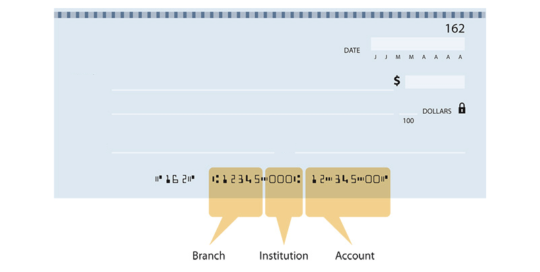
If you have already completed a project with IAF and received payment, we recommend checking the EFT information on your Client Portal to ensure it is still up to date.
If you have any questions about EFT, please contact finance@iafbc.ca
Funding Acknowledgment
What is Funding Acknowledgement?
Funding acknowledgement is exactly what is sounds like, acknowledging the funders that are making your project possible. It’s important to the program funders that funding is appropriately acknowledged, and credit given on any public communications.
Not all projects produce materials that require funding acknowledgement, but if you make a social media post, newsletter update, media release, or other public project communications, the material must be submitted in advance of publication for review and approval. This includes any reports or publications you may complete. Not sure if you need to submit something? Contact communications@iafbc.ca for clarification.
Communications materials must be submitted to the IAF Client Portal at least 10 days prior to being needed. The approval is granted by the Ministry of Agriculture and Food, with the process being facilitated by IAF.
For a downloadable PDF of the funding acknowledgement requirements, see the resources section.
Funding Acknowledgement Process
Design
Design project materials, include appropriate logos and/or credit line.
Submit
Submit your materials to IAF through the client portal at least 10 days in advance. IAF submits to funder for review.
Feedback
IAF will provide you with the feedback received from the funders. If required, you may need to edit your material and re-submit for approval.
Approval
Once the material has been approved by the funder IAF will notify you to confirm that the material is approved for use.
Distribute
Once the approval has been given, you’re free to use the materials.
Funding Acknowledgement Requirements
Funding acknowledgements typically include logos (graphic identifiers), a credit line (written statement), and a disclaimer statement. Typically, the acknowledgement appears near the front of a report or publication, at the bottom of the table of contents, on an acknowledgement page or similar.
You must submit proofs of all communications materials in advance of being made public to IAF’s Communications Team. The communications team is here to help with questions about requirements for each type of material.
Reminder: All materials require approval by IAF prior to printing/production/distribution.
General rule: Logos must appear on communication materials. If it’s a report or publication you may also need a credit line and/or disclaimer statement. When using a government logo you must complete a third-party use form. There are also extra things to be added if the materials is going on social media.
- Logos
- Credit Line
- Disclaimer
- 3rd Party Use
- Social Media
- Videos & Presentations
- Reports & Publications
- Public Announcements
The logos (aka. Graphic Identifiers) must be used on the majority of communication materials. This includes newsletters, event invitations, press releases, announcements, public reports, advertisements, flyers, posters, brochures, and related communication materials.
Whenever the Province’s logo appears, the user must also complete and submit a Third-Party Use form for approval. This should accompany all materials submitted for approval that contain the Province of BC’s logo.

Need the logos? Please refer to the resources section below. There you will find a link to download a .zip file with a variety of logos you may require. If you are unable to download a .zip file, please contact the Comms Team and we’ll forward you the logos.
In addition to the logos, the credit line should also be included in reports and other publications.
For brochures, posters, or displays, a written statements may not be required. The Comms Team can clarify prior to development, or upon submission of materials for approval.
Credit Line:
We gratefully acknowledge the financial support of the Province of British Columbia through the Ministry of Agriculture and Food.
Disclaimers statements are required in reports and other publications, especially when they contain recommendations and opinions. Typically, we recommend this statement appears near the front of a report or publication, at the bottom of an acknowledgement page, with the logos and credit statement at the end of a video, or similar.
Disclaimer statement:
The Government of British Columbia and the Investment Agriculture Foundation of BC are pleased to participate in the [production/delivery] of this [project/publication/event, etc.]. We are committed to working with our industry partners to address issues of importance to the agriculture and agri-food industry in British Columbia. Opinions expressed in this [report, publication, etc.] are those of [organization name, the authors, etc.] and not necessarily those of the Investment Agriculture Foundation or the Government of British Columbia.
The Third-Party Use form must be completed and submitted for approval with items that include the BC logo. This is a provincial government requirement that asks how/where the BCID will be used. You can fill it out as follows:
- Under “What is their relationship to government?” you can put “funding recipient”
- Under “List any other Marks that will appear in conjunction with the BC mark” List any logos that appear with BC, this can include IAF, or your own logo.
- Under “medium” tick all of the materials that you anticipate you will create for the duration of the project (that will include the logos)
- Under “Application prepared by” leave the ministry and branch boxes empty but complete the other fields (or indicate ‘same as above’) and please sign and date the form
- Ignore the “Endorsements/Approvals” section, that is for internal ministry use only
We understand you may be interested in sharing your project funding or details on your social media accounts. This action constitutes a ‘public announcement’ and requires advanced approval. Contact the Communications Team for additional details on project communications via social media.
Please submit ALL social media content relating to your project to the IAF Client Portal prior to posting for approval. If you will be doing many social posts, please contact us and we will work with you to approve a social media campaign, rather than every individual post.
You are required to have the Logos, Credit Line, and Disclaimer in your video or presentation. The three components should be on a single acknowledgement slide at the end or beginning of your video or presentation.
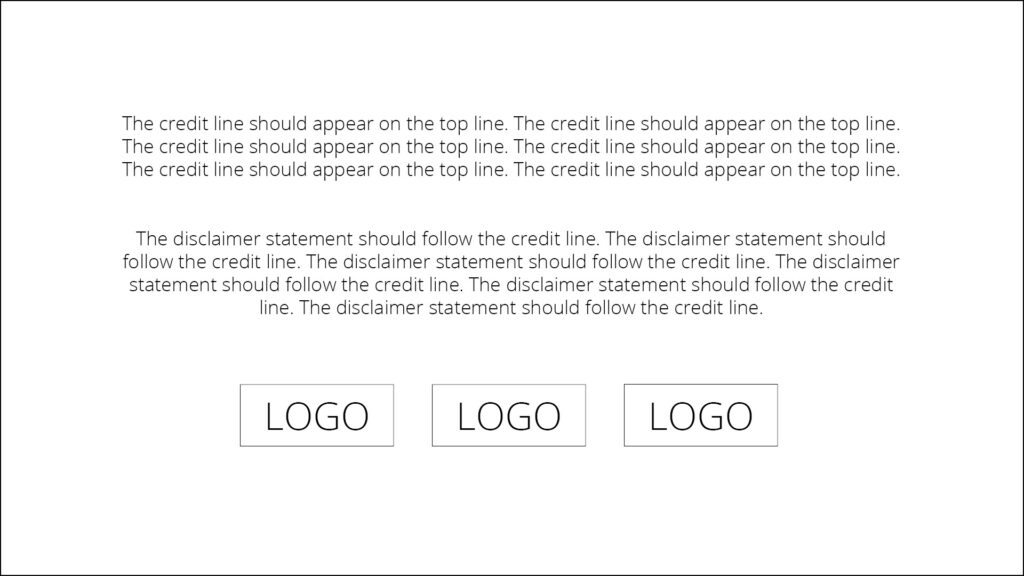
You are required to have the Logos, Credit Line, and Disclaimer in reports and publications. In select cases the logos may be omitted due to space or formatting requirements. If you have questions about how to acknowledge funding on your materials, please reach out early to IAF Communications.
For most reports and publications, a funding acknowledgement page is included near the beginning of a report. This will contain the credit line, disclaimer, and logos.
An event or project announcement is considered a ‘public announcement’ and requires advanced approval. All event material should be submitted together as one approval. This may include an event poster, a registration page, and social media posts.
Announcements such as news releases should be submitted as early as possible. Our funders require additional time to review announcements, especially if you are requesting a quote.
Submitting Materials for Approval
All materials must be approved in advance. It is important to submit materials well in advance of your distribution deadline, as it can take some time to review. We recommend you allow yourself 10 business days for approval, as IAF works with the government funder to ensure acknowledgement is appropriate.
How to Submit Materials Via the IAF Client Portal
To upload a material for review:
- Visit the IAF Client Portal and log into your account.
- Navigate to the Funding Acknowledgement section of your project (on the Project card, select Active).
- Scroll down to the Funding Acknowledgement section, click the ‘green plus’, complete the information, and upload the related document or material.
- When you click SAVE, it will automatically be submitted to the IAF Team to begin the review process.
The status of your request is available in the IAF Client Portal, on the left side near the bottom you will see a Funding Acknowledgement section. The section lists all your request under review, requiring your attention, approval and declined. You will receive an email to your inbox when updates are made.
Learn how to submit material:
Resources
We gratefully acknowledge the financial support of the Province of British Columbia through the Ministry of Agriculture and Food.